Updating Your Payment Information

Published on
April 10, 2026

Edit your card on file or switch payment methods.

Payment information is managed through the Stripe Customer Portal. You can update your card, add a new payment method, or change your billing details at any time.
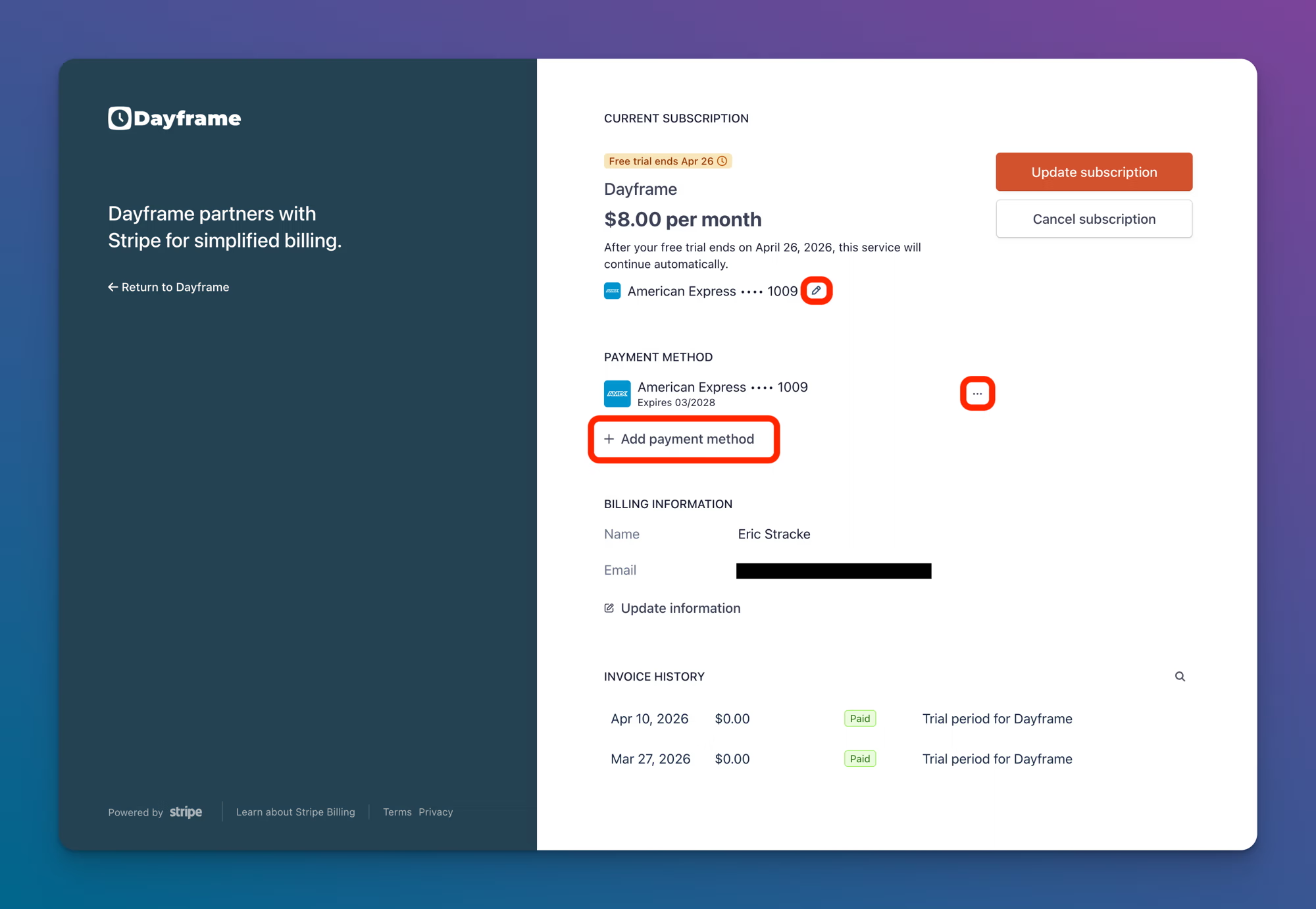
Updating your card or payment method

  1. Go to Settings → Billing.
  2. Click Manage Subscription. This opens the Stripe Customer Portal.
  3. Under Payment Method, click the three-dot menu next to your current card to edit it, or click + Add payment method to add a new card.
  4. Enter your updated card details and save.
Stripe billing settings in Dayframe

Updating billing information

In the Stripe Customer Portal, scroll to Billing Information to update the name and email associated with your billing account. Click Update information to make changes.

Viewing invoices

Your invoice history is available at the bottom of the Stripe Customer Portal page and on the Billing page in Dayframe. Each invoice shows the date, amount, payment status, and can be downloaded.

Tips

  • If your card is expiring soon, update it before your next billing date to avoid a failed payment.
  • The billing email address in Stripe can be different from your Dayframe account email. Invoices are sent to the billing email.

Related