
Include location details, crew notes, or setup instructions on any block.
Every time block in Dayframe has fields for context beyond the title and time range. Use them to give your crew the details they need without a separate document.
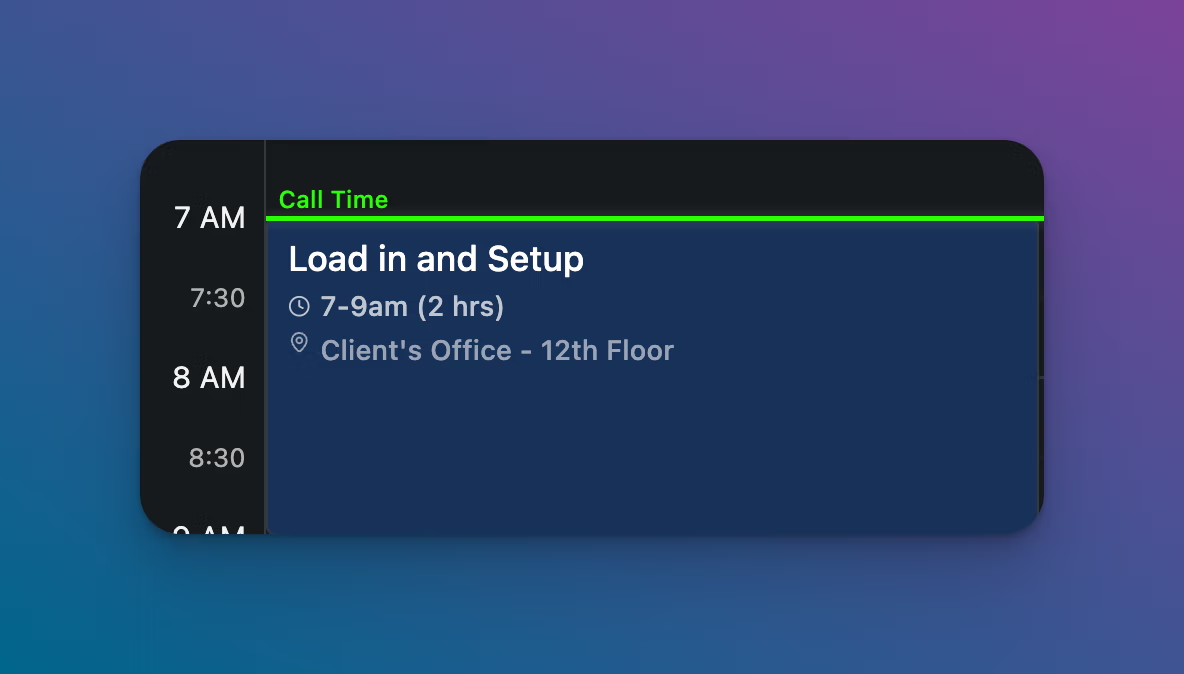
The Location field appears on the block and in the PDF export. Use it for the specific spot where the activity takes place.
Examples:
The location displays on the block below the time range, with a pin icon.
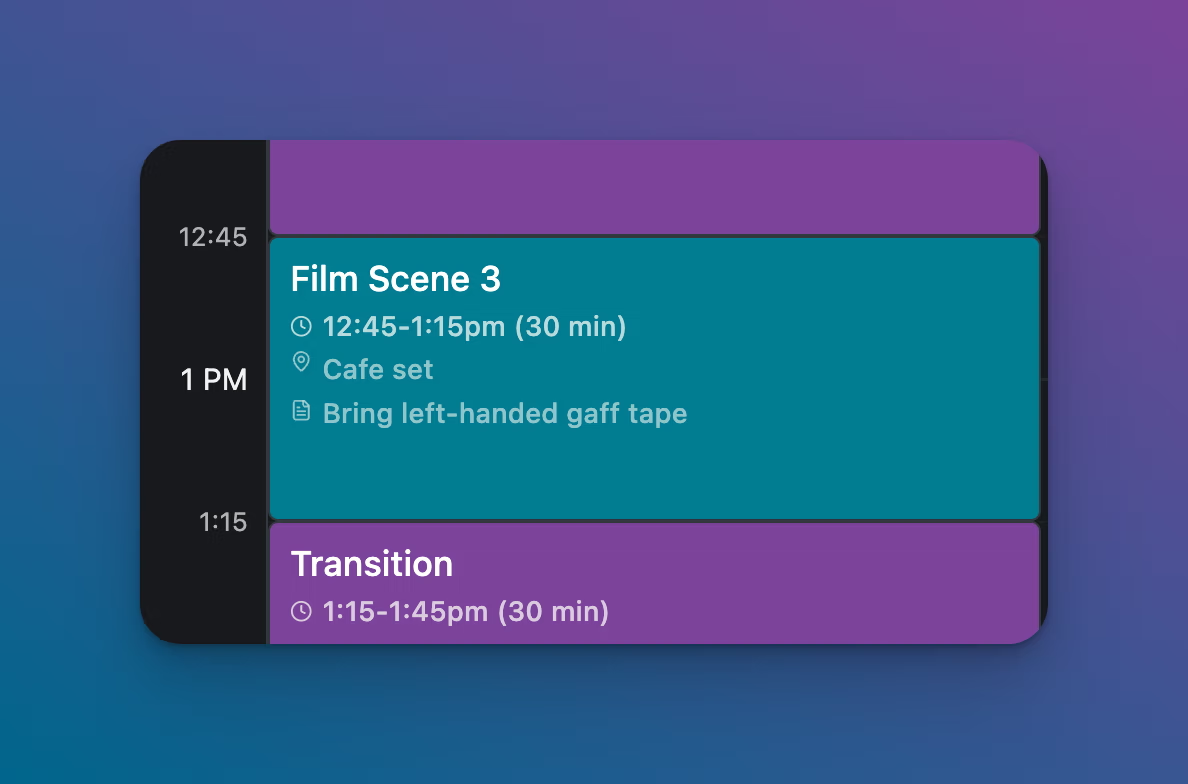
The Notes field is a text area for anything else the crew needs to know. Click the Aa icon to format the text. Notes display on the block below the location.
How much of the note is visible depends on your zoom level. The further you zoom in, the more lines of the note are shown on the block. If you zoom out too far, notes disappear from the block entirely. The note content is always preserved and always visible in the PDF export regardless of zoom.
Examples:
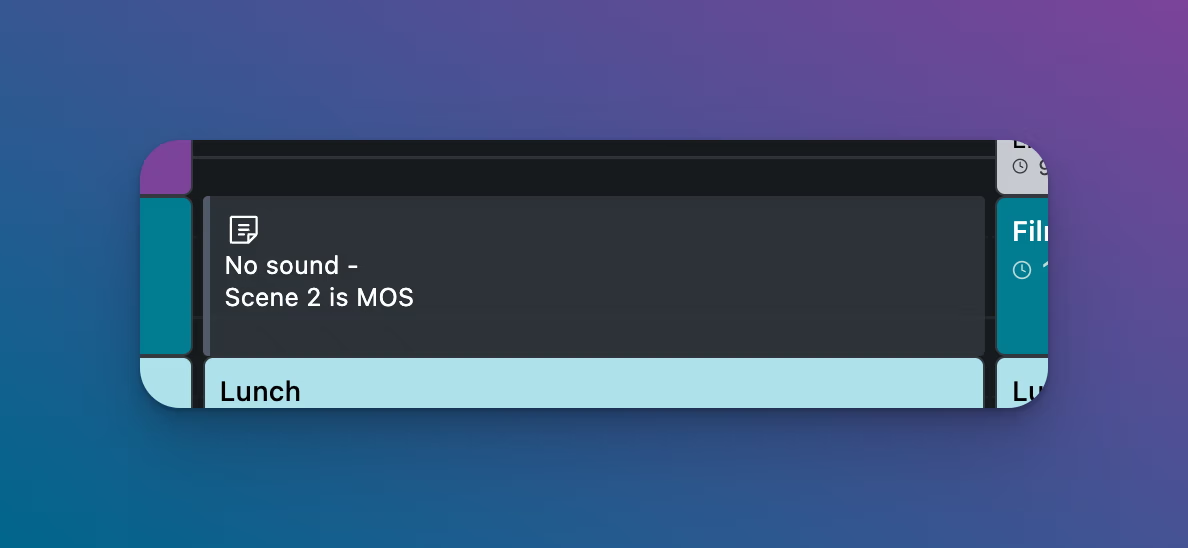
If you need to add context to the schedule that isn't a timed activity, use a Note Only block. Toggle Note Only in the top-right corner of the Edit Time Block modal. Note Only blocks:
Use them for crew reminders, MOS callouts, or any annotation that doesn't belong on a timed block.
The Color field on each block lets you assign a hex color. Use color to visually group related blocks:
Consistent color coding makes a schedule scannable at a glance, especially on a busy multi-lane day.