Quick PDF export for call sheet attachments, sharing, and printing.
Dayframe's PDF export produces a clean, formatted document that mirrors your on-screen schedule. Use it to attach to call sheets, email to clients, or print for on-set reference.
Exporting a PDF
Open the schedule you want to export.
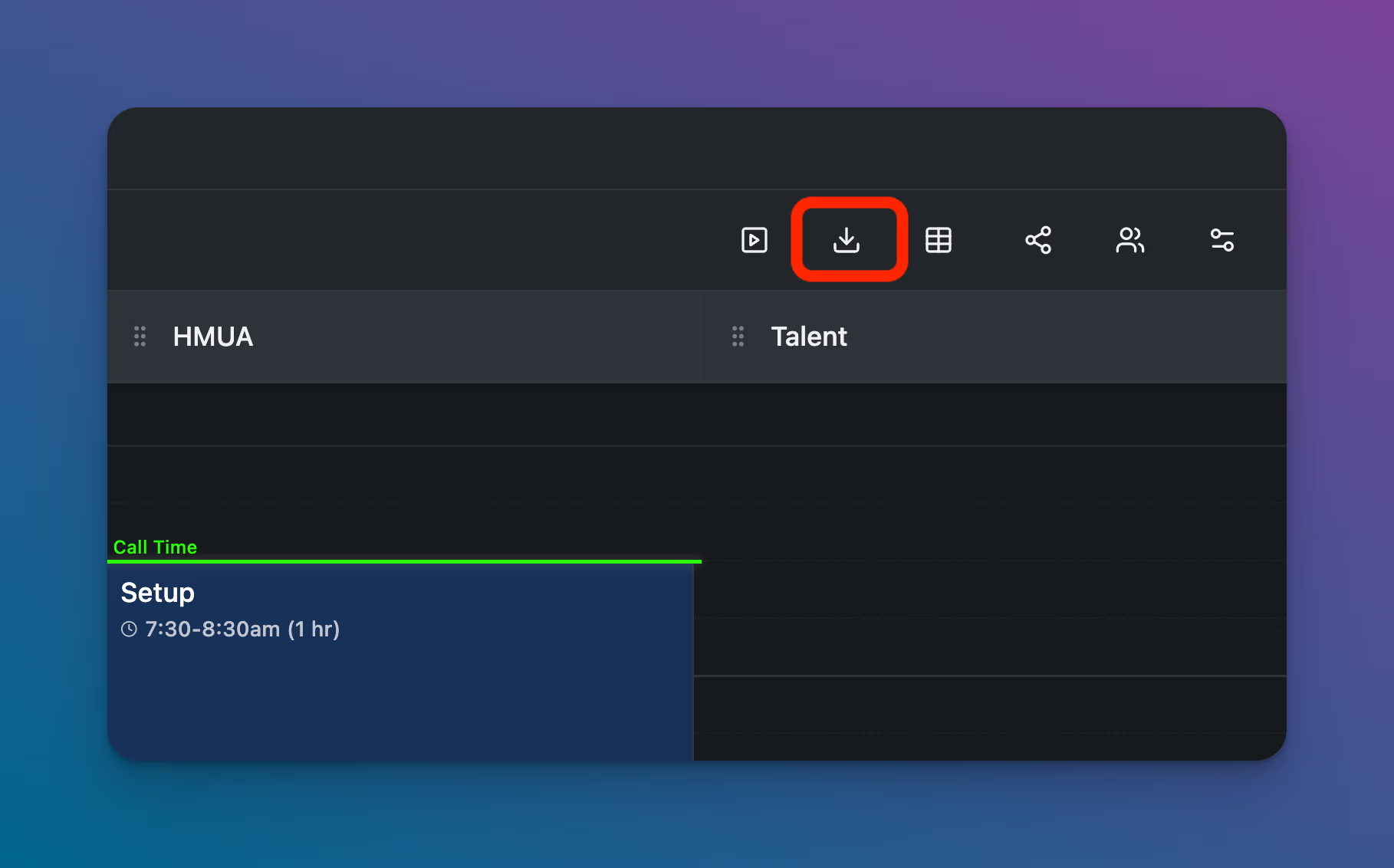
Click the PDF Export icon in the toolbar (the download arrow icon).
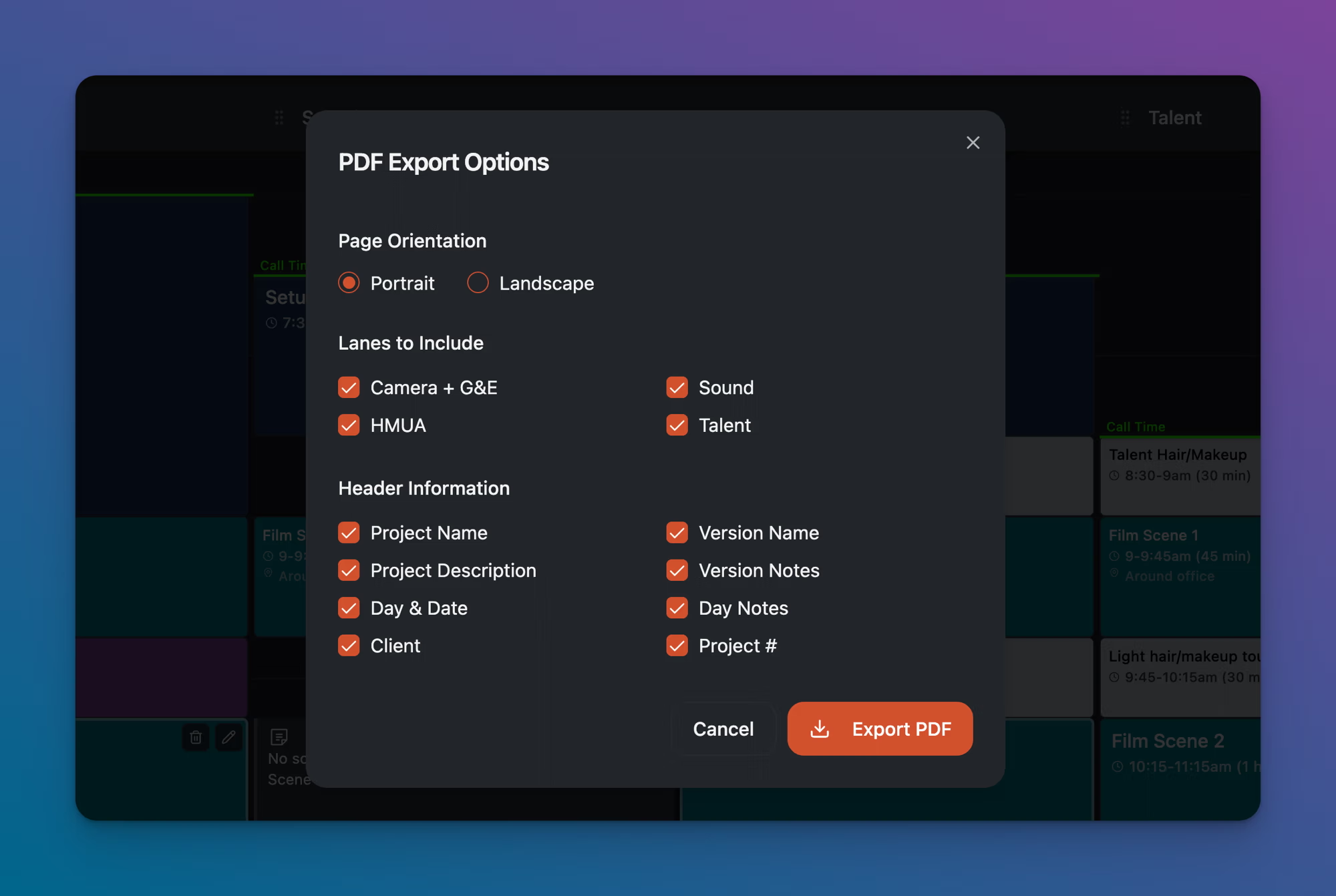
The PDF Export Options modal appears with three sections:
Page Orientation
Choose Portrait or Landscape. Landscape gives each lane more horizontal space, which works better for schedules with four or more lanes.
Lanes to Include
Check or uncheck individual lanes to control which departments appear in the PDF. All lanes are included by default. Uncheck any lane you want to exclude. This is useful when you need a department-specific PDF, like a Sound-only schedule for your mixer.
Header Information
Check or uncheck which header fields appear at the top of the PDF:
Project Name
Project Description
Day & Date
Client
Version Name
Version Notes
Day Notes
Project #
All fields are included by default. Uncheck any you want to hide. For example, you might remove Client and Project # when sharing a PDF with crew who don't need that context.
Click Export PDF. The file downloads to your computer.
What the PDF includes
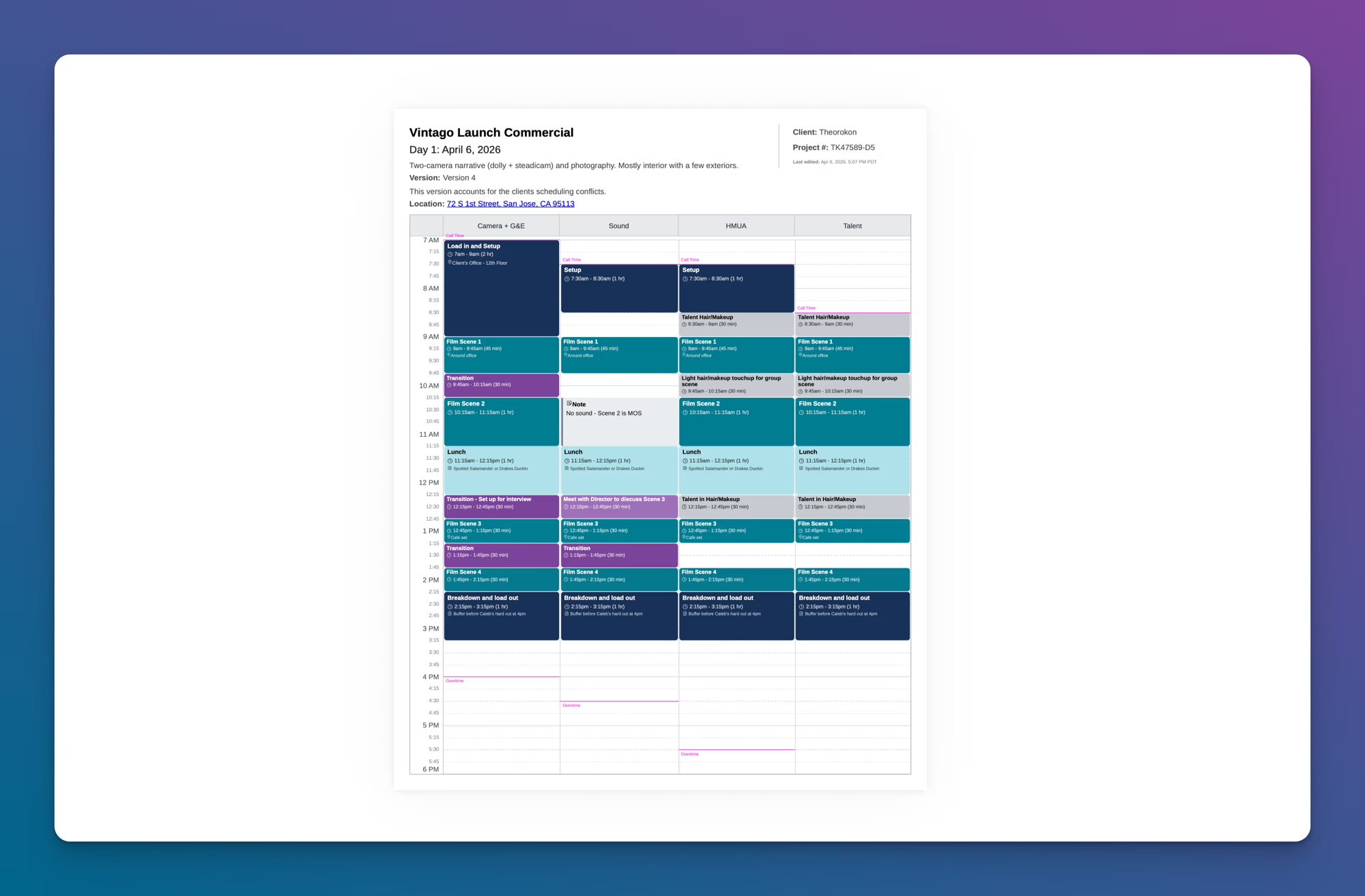
The exported PDF mirrors what you see on screen, filtered by your export options:
Header: Whichever header fields you selected in the export options.
Timeline grid: The selected lanes with their time blocks, titles, time ranges, durations, locations, and notes.
Indicator lines: Call Time and Overtime indicators appear on the PDF if they're enabled on the schedule.
Printing
To print the PDF, open the downloaded file in Preview (Mac), your browser, or any PDF viewer and print from there. For best results:
Print at actual size (100%) rather than "fit to page" to preserve readability.
Use landscape orientation if your schedule has four or more lanes. This gives each lane more horizontal space.
For schedules with many lanes, consider printing on larger paper (11x17 / tabloid) if your printer supports it.
Tips
The PDF always reflects the current state of the schedule. If you've made changes since the last export, export again to get the latest version.
Notes and locations are always visible in the PDF regardless of your zoom level in the app. If you can't see notes on screen, they still appear in the export.
Use the lane filter to create department-specific PDFs. Export once with all lanes for the full crew schedule, then export again with only the relevant lanes for individual departments.
The PDF exports only the currently viewed day. On multi-day shoots, switch to the day you want using the Day selector in the toolbar, then export. Repeat for each day you need.