Sharing a Schedule with Your Crew

Published on
April 10, 2026

Send a clean, mobile-friendly link your crew can view on set.

Dayframe's shared links give your crew and clients a view-only version of the schedule. Recipients don't need a Dayframe account. They just open the link on any device.
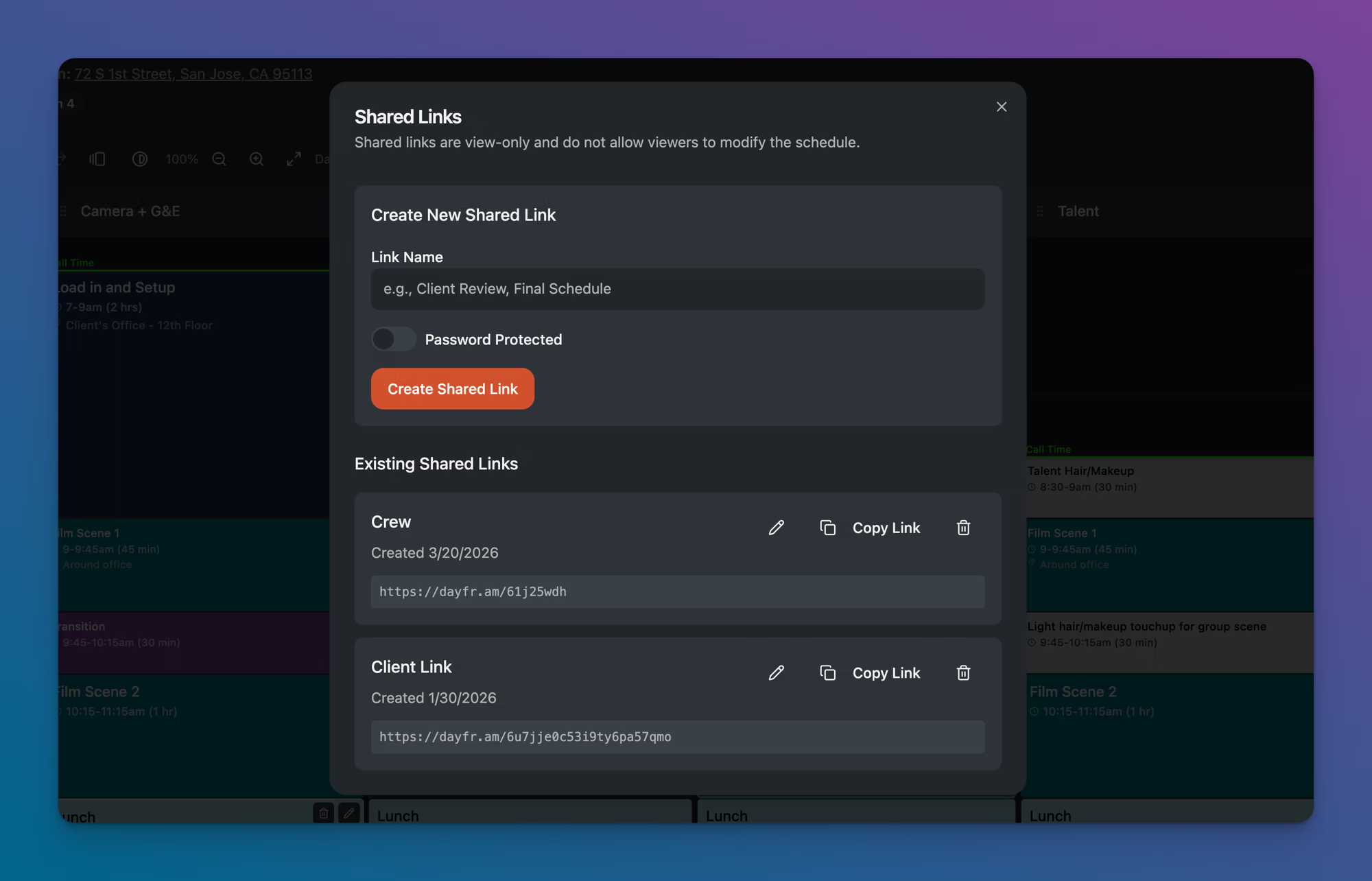
Creating a shared link

  1. Open the schedule you want to share.
  2. Click the Create share links icon in the toolbar (the chain link icon).
  3. The Shared Links modal appears.
  4. Under Create New Shared Link, enter a Link Name (e.g., "Crew," "Client Review," or "Director").
  5. Optionally toggle Password Protected if you want to require a password to view the schedule.
  6. Click Create Shared Link.
Share link options in Dayframe

A short URL is generated. Click Copy Link to copy it to your clipboard, then paste it into an email, text, Slack, or wherever your crew communicates.

Managing shared links

The Existing Shared Links section shows all links you've created for the current project. Each link displays:

  • Link name and creation date
  • Short URL with a Copy Link button
  • Edit icon (pencil) to rename the link or change the password
  • Delete icon (trash) to remove the link

You can create multiple shared links per project. This is useful when you want separate links for different audiences. For example, a "Crew" link for the production team and a "Client Link" for the client, so you can revoke one without affecting the other.

What recipients see

Shared links are view-only. Recipients can see the full schedule with all lanes, blocks, notes, and indicator lines, but they cannot edit anything. The schedule displays in a mobile-friendly layout, so crew members can pull it up on their phone between setups.

The shared link always shows the latest version of the schedule. When you make changes, anyone with the link sees the updated schedule the next time they open it.

Tips

  • Name your links descriptively. "Crew" and "Client Review" are more useful than "Link 1" and "Link 2," especially when you need to revoke or update access later.
  • Use password protection for client-facing links if the project is under NDA or contains sensitive information.
  • One link covers all days on a multi-day shoot. Recipients can switch between days from the shared view by tapping the menu icon and selecting a day.

Related