Add your logo to project emails and set a custom color palette for your schedules.
Dayframe lets you customize two branding elements: your email logo and a color palette for time blocks.
Email logo
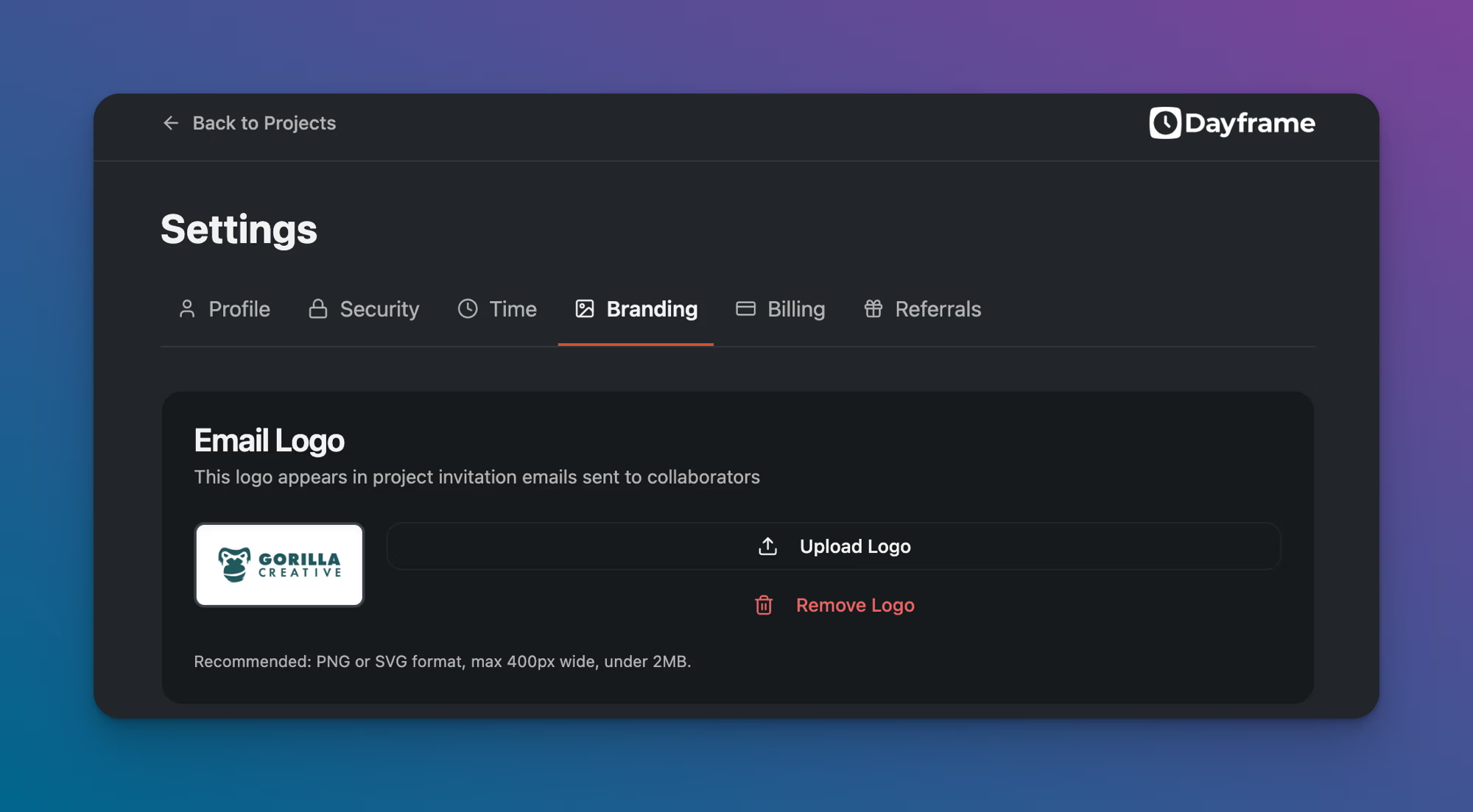
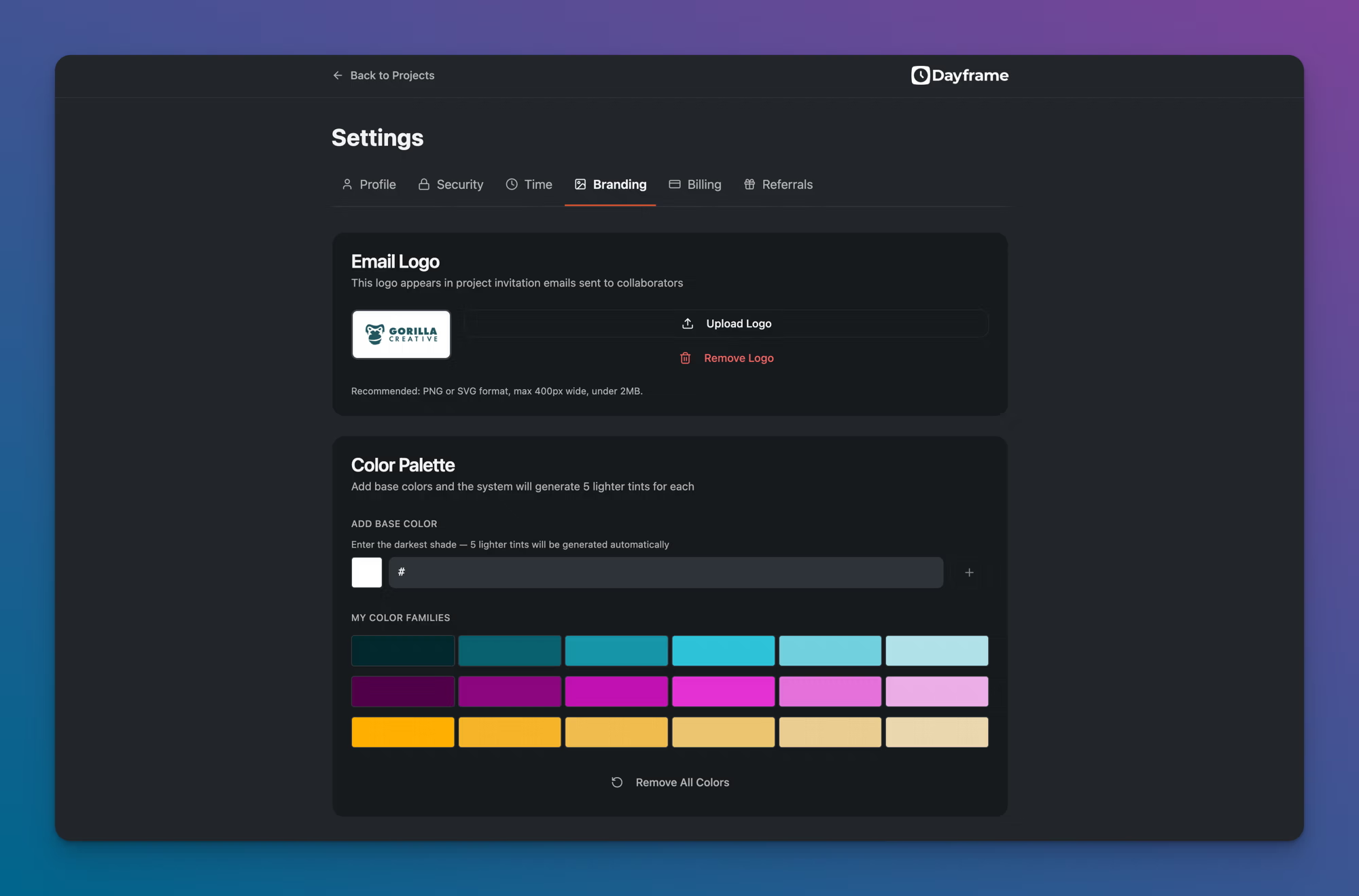
The email logo appears in project invitation emails sent to collaborators.
Go to Settings → Branding.
Under Email Logo, click Upload Logo.
Upload your logo file. Recommended: PNG or SVG format, max 400px wide, under 2MB.
Color palette
The color palette gives you a set of custom colors for styling time blocks on your schedules. These colors also appear in the PDF export.
Go to Settings → Branding.
Under Color Palette, enter a hex color code in the field (this should be the darkest shade you want).
Click the + button to add it. Dayframe automatically generates 5 lighter tints from your base color.
Repeat to add more base colors.
Your custom colors appear as options when you set the color on any time block in the Edit Time Block modal. They apply to the block on the schedule and in the PDF export. Lane headers and other UI elements are not affected by branding colors.
Tips
Start with your production company's brand colors as base colors. This gives your schedules a polished, consistent look when shared with clients.
The 5 auto-generated tints are useful for creating visual groupings within a single brand color (e.g., darker for scenes, lighter for transitions).