Copy existing blocks to speed up schedule building, or remove blocks you no longer need.
Copying and pasting blocks
Dayframe supports standard keyboard shortcuts for copying and pasting time blocks.
Select one or more blocks (click a single block, or Shift+click / marquee select for multiple).
Press Cmd+C (Mac) or Ctrl+C (Windows) to copy.
Press Cmd+V (Mac) or Ctrl+V (Windows) to paste.
Pasted blocks appear at the same time position as the originals. From there, drag them to a new position on the timeline.
You can also paste blocks across boundaries:
Into a different day — switch to another day using the Day selector in the toolbar, then paste.
Into a different version — switch to another version using the Versions panel, then paste.
Into a different project — open a different project from the sidebar, then paste.
If the destination day or project doesn't have the same lanes as the source, Dayframe automatically creates the missing lanes when you paste. This means you can paste a full set of blocks into a blank day or new project and the lane structure comes with them.
This makes it fast to reuse block structures across days or projects without rebuilding them from scratch.
Option+drag to duplicate
You can also duplicate blocks directly on the timeline:
Select one or more blocks.
Hold Option (Mac) or Alt (Windows) and drag the selection.
A copy of the selected blocks is created at the new position, with times adjusted to match where you dropped them.
This is the fastest way to duplicate blocks within the same day and lane.
Deleting a block
You can delete a block two ways:
From the schedule:
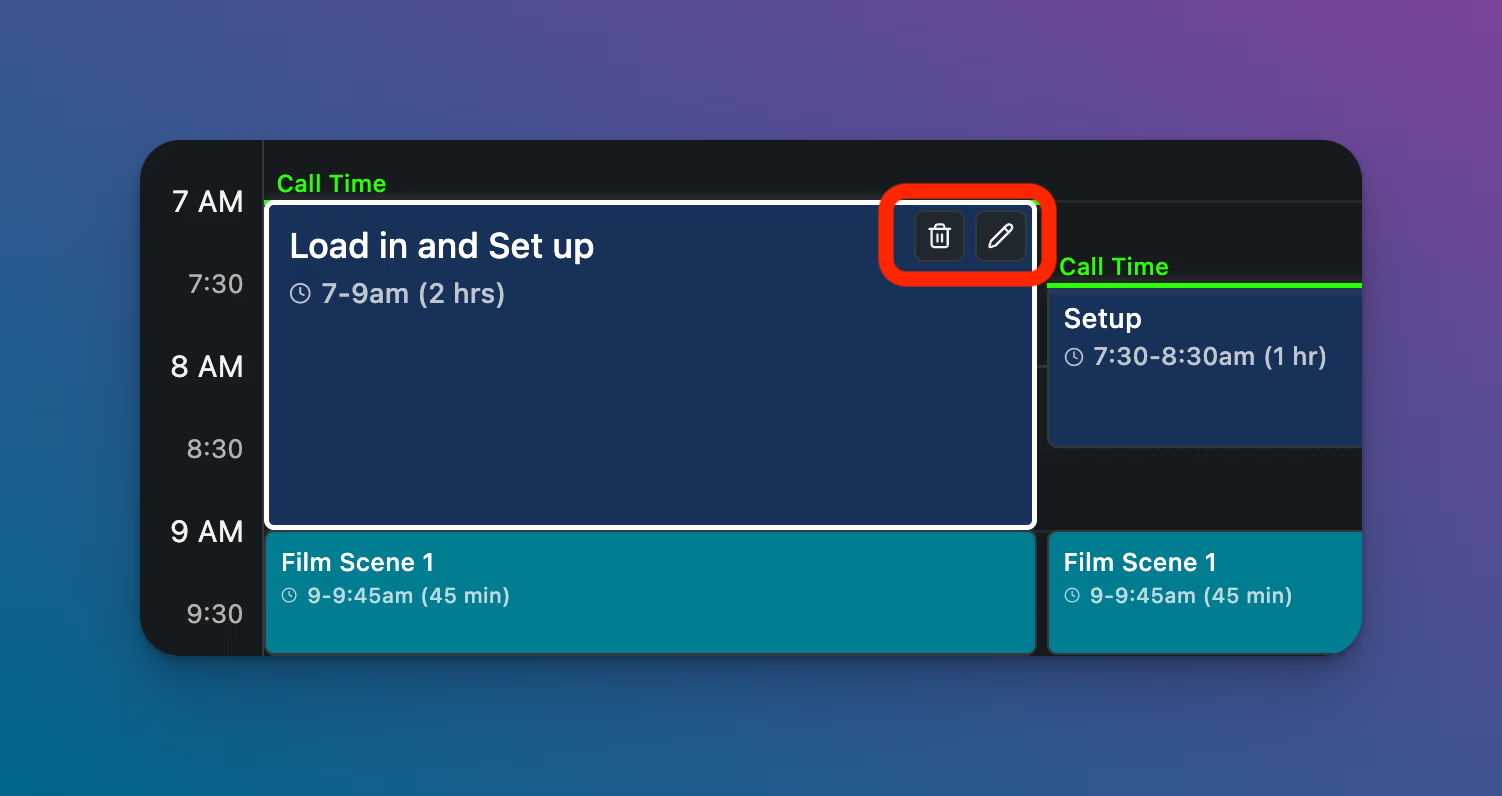
Hover over the block you want to delete.
Click the trash icon that appears in the top-right corner of the block.
The block is removed, and surrounding times recalculate.
From the Edit modal:
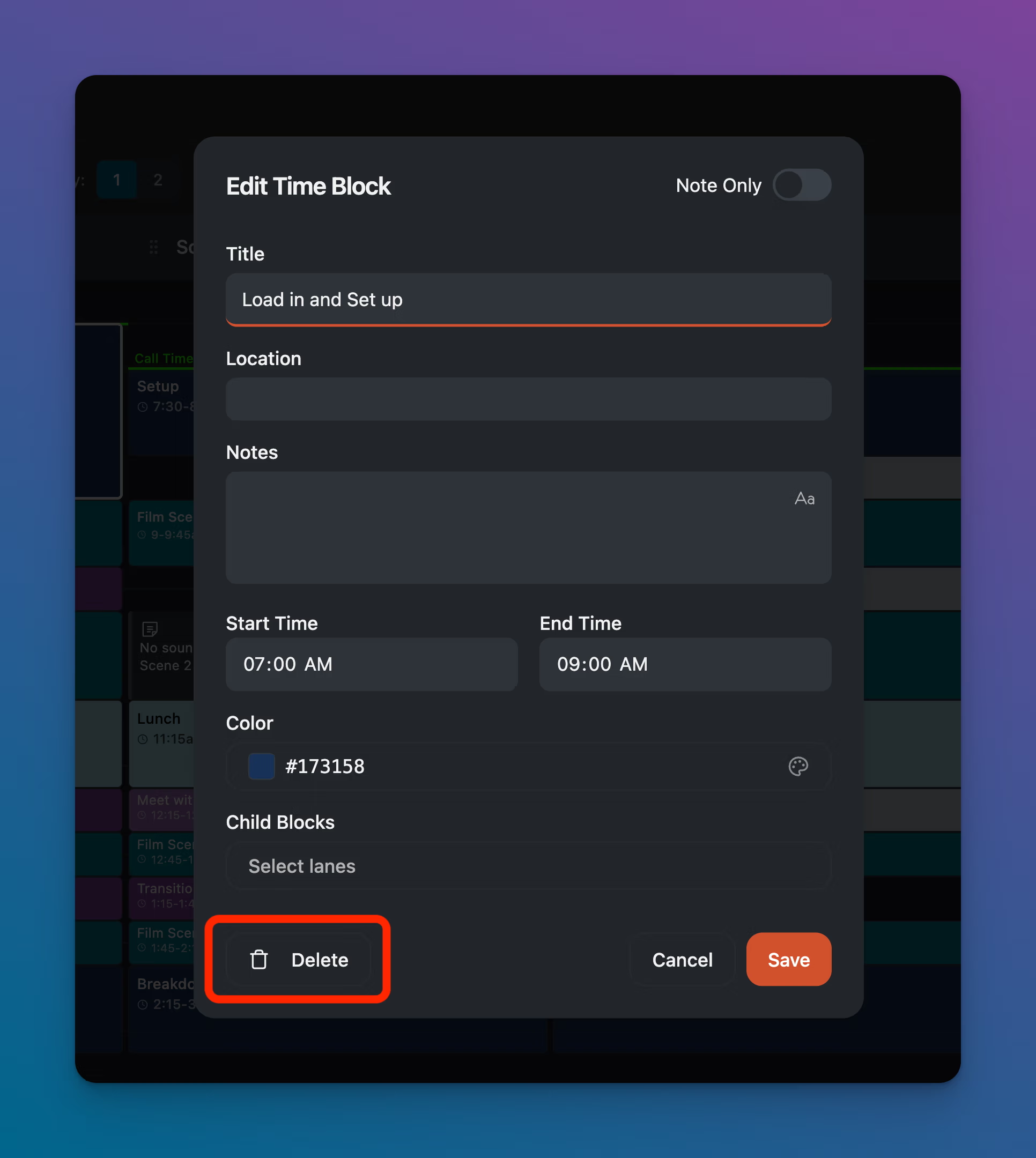
Click the pencil icon on the block to open the Edit Time Block modal.
Click Delete in the bottom-left corner of the modal.
The block is removed.
Tips
Deleting a block is not reversible with a confirmation dialog. If you delete a block by mistake, use Undo in the toolbar (or Ctrl/Cmd+Z) immediately.
If you need the same block structure across multiple lanes (like "Lunch" appearing in every lane at the same time), consider using parent/child blocks instead of creating separate blocks in each lane. See Using Parent/Child Blocks.