Using Indicator Lines (Call Time, Meal Break, and Overtime)
Published on
April 10, 2026
Set per-lane indicators so your crew's call times, meal breaks, and overtime thresholds are visible at a glance.
Every lane in Dayframe has three configurable indicator lines: Call Time, Meal Break, and Overtime. These are visual markers on the timeline that help you and your crew see key thresholds without counting hours manually.
Where to configure indicator lines
Indicator lines are set per lane. You configure them when you create a new lane, and you can edit them anytime by clicking the lane settings.
Click the + button at the top-right of the lane headers to add a new lane (or edit an existing lane).
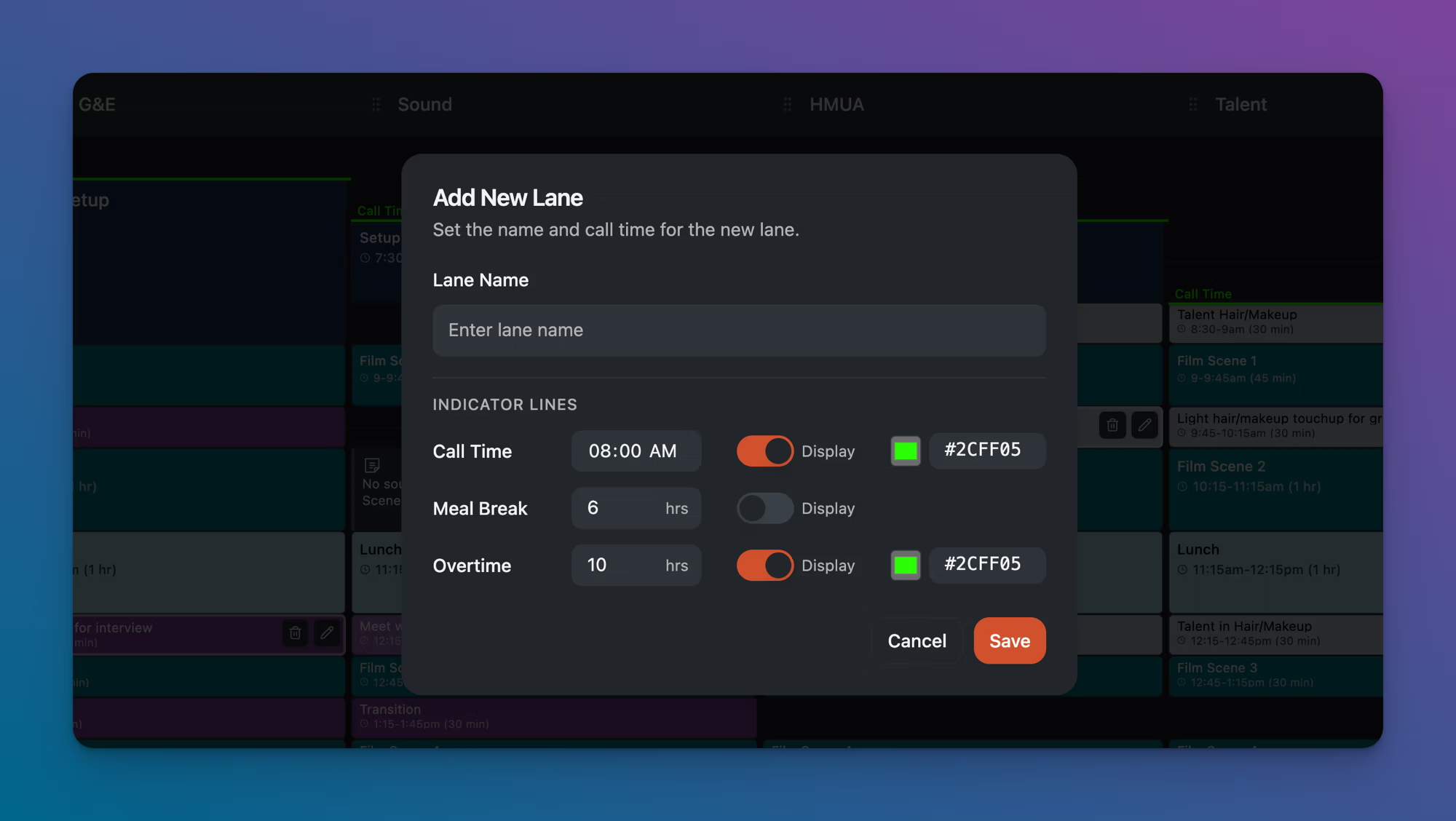
In the Add New Lane modal, you'll see three indicator lines under Indicator Lines:
Call Time
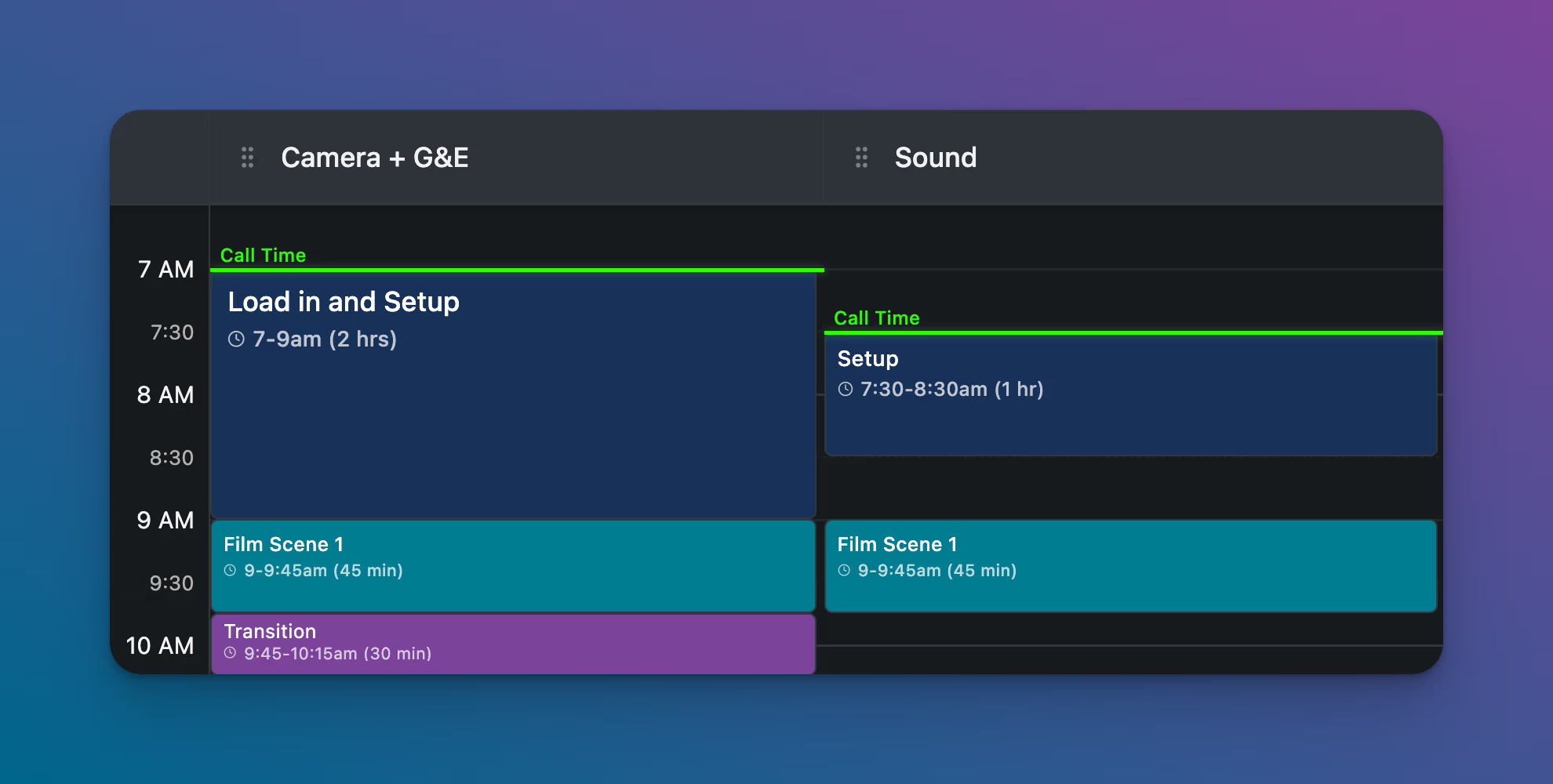
What it does: Displays a colored label and horizontal line at the time a department's crew is called to set. This is the first thing your crew looks for on a schedule.
Fields: Time (e.g., 08:00 AM), Display toggle, Color picker.
On the schedule: A green "Call Time" label and line appear at the set time on that lane.
Different lanes often have different call times. Camera + G&E might call at 7:00 AM for a load-in, while Talent doesn't need to arrive until 8:30 AM. Setting Call Time per lane makes this visible at a glance.
Meal Break
What it does: Sets a threshold (in hours) for when a meal break should happen. Production crews typically need to break for a meal within 6 hours of call time.
Fields: Hours (e.g., 6 hrs), Display toggle.
On the schedule: When enabled, a visual indicator appears at the point where the lane has been working for the specified number of hours without a meal.
Use this to stay ahead of meal penalties on union shoots, or to make sure you're not running your crew too long without a break on any shoot.
Overtime
What it does: Sets a threshold (in hours) for when a lane goes into overtime. Standard crew days are typically 10 hours.
Fields: Hours (e.g., 10 hrs), Display toggle, Color picker.
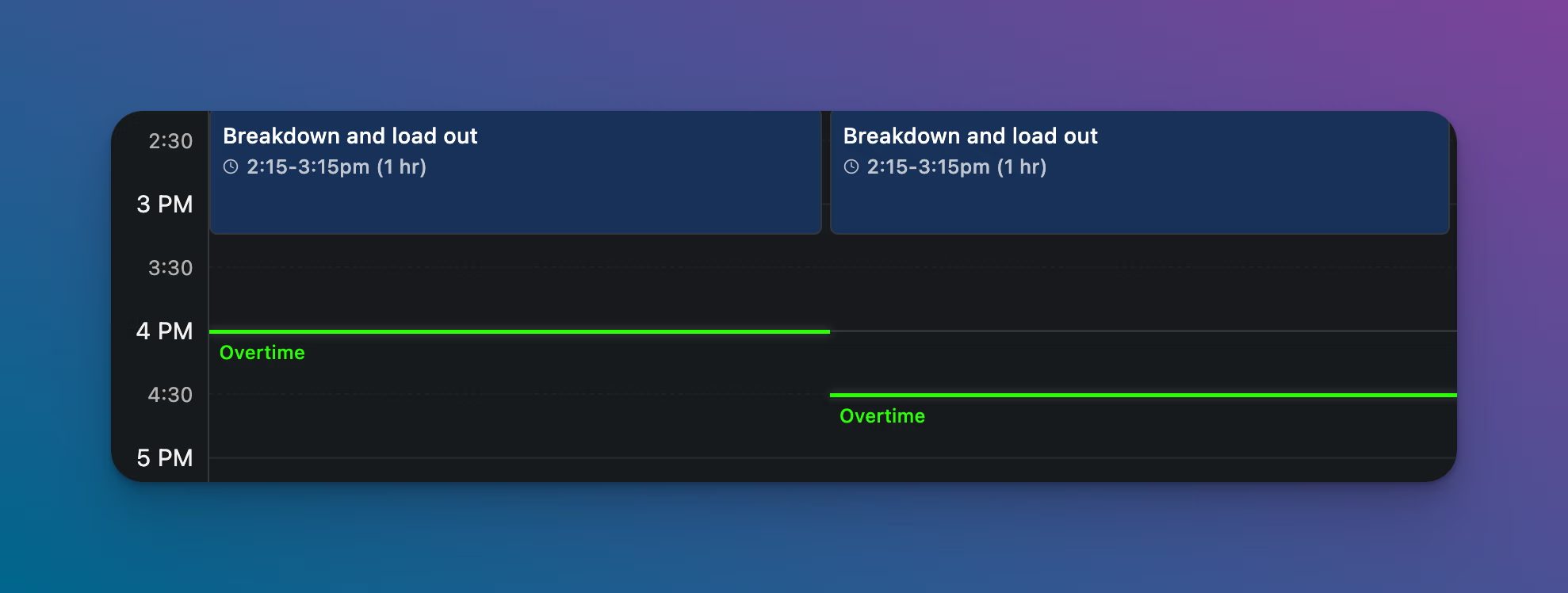
On the schedule: An "Overtime" label and colored line appear at the point where the lane's total hours exceed the threshold.
Toggling indicators on and off
Each indicator line has a Display toggle. Turn it on to show the indicator on the schedule, or off to hide it. The threshold values are preserved even when the display is off, so you can toggle visibility without reconfiguring.
Tips
Call Time and Overtime are the two most useful indicators to display. Meal Break is helpful on union shoots but can be turned off for simpler productions.
Set different call times for different lanes. Your gaffer doesn't need to arrive at the same time as your makeup artist.
The default color for indicators is green, but you can change it to any color. Keeping Call Time and Overtime the same color makes them easy to scan across lanes.